Table of contents
Open Table of contents
Intro
In this article, I’ll share why I use Presenterm and why I recommend it.
Presenterm
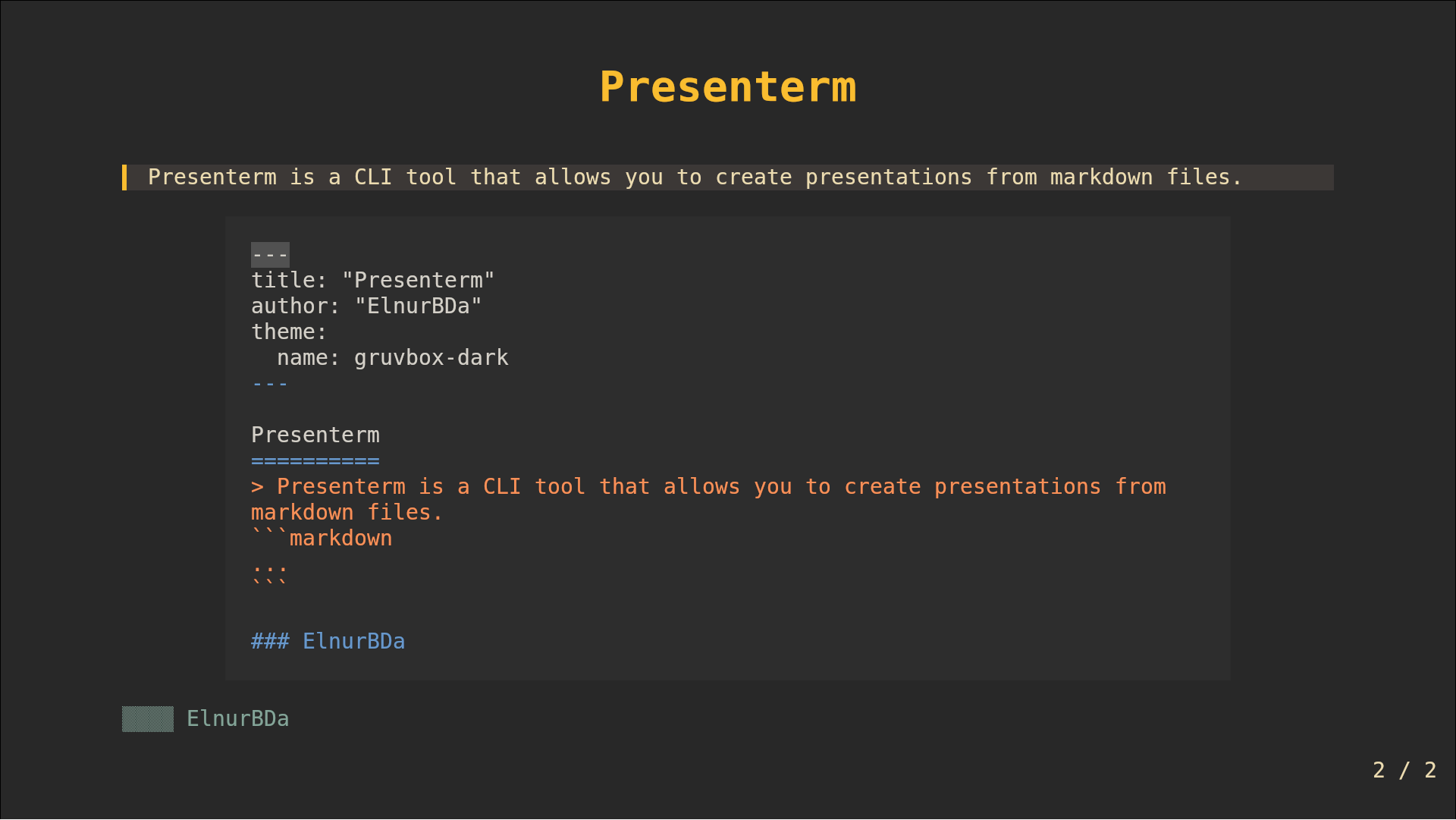
presenterm lets you create presentations in markdown format and run them from your terminal, with support for image and animated gif support, highly customizable themes, code highlighting, exporting presentations into PDF format, and plenty of other features.
Why does someone need it?
It’s especially useful for topics like Linux and Programming. Presenterm makes creating clean, reusable presentations much easier. It solves many problems you typically face with .pptx and .pdf slides. For example:
- Want to copy a snippet of code from a slide?
- Traditional: Hell no - prepare for malformed symbols and random text from other slides.
- Presenterm: 🫡
- Want nicely highlighted code snippets?
- Traditional: Play with colors and formatting until your soul leaves your body.
- Presenterm: Automatically highlights almost any code block.
- Want your presentation to scale depending on screen resolution?
- Traditional: No, you don’t.
- Presenterm: Works on any resolution (terminal zooming gives you full control).
- Want version control for your presentation?
- Traditional:
O_o - Presenterm:
git add my_presentation.md && git commit -m "see, you can git it" && git push
- Traditional:
- Presentation as code?
- Presenterm: 🫡
- Presentation where Diagrams and Formulas also can be as code?
- Presenterm: 🫡 (mermaid, D2, LaTeX and typst)
- A config to change the theme colors?
- Presenterm: 🫡
- Execute code inside a slide?
- Presenterm: 🫡
However, if your topic is something like “Why bees are important for the forest?” - then yes, please use PowerPoint or Canva. Or, if you’re not as mad as me (or Presenterm’s other fans), then - also yes - go PowerPoint yourself.
Examples
I won’t include full documentation on how it works, but here are two of my example courses that were created and successfully used with Presenterm:
If you check the presentation files closely, you might suspect that I used help from an AI.
And that is correct!
Sample Slides
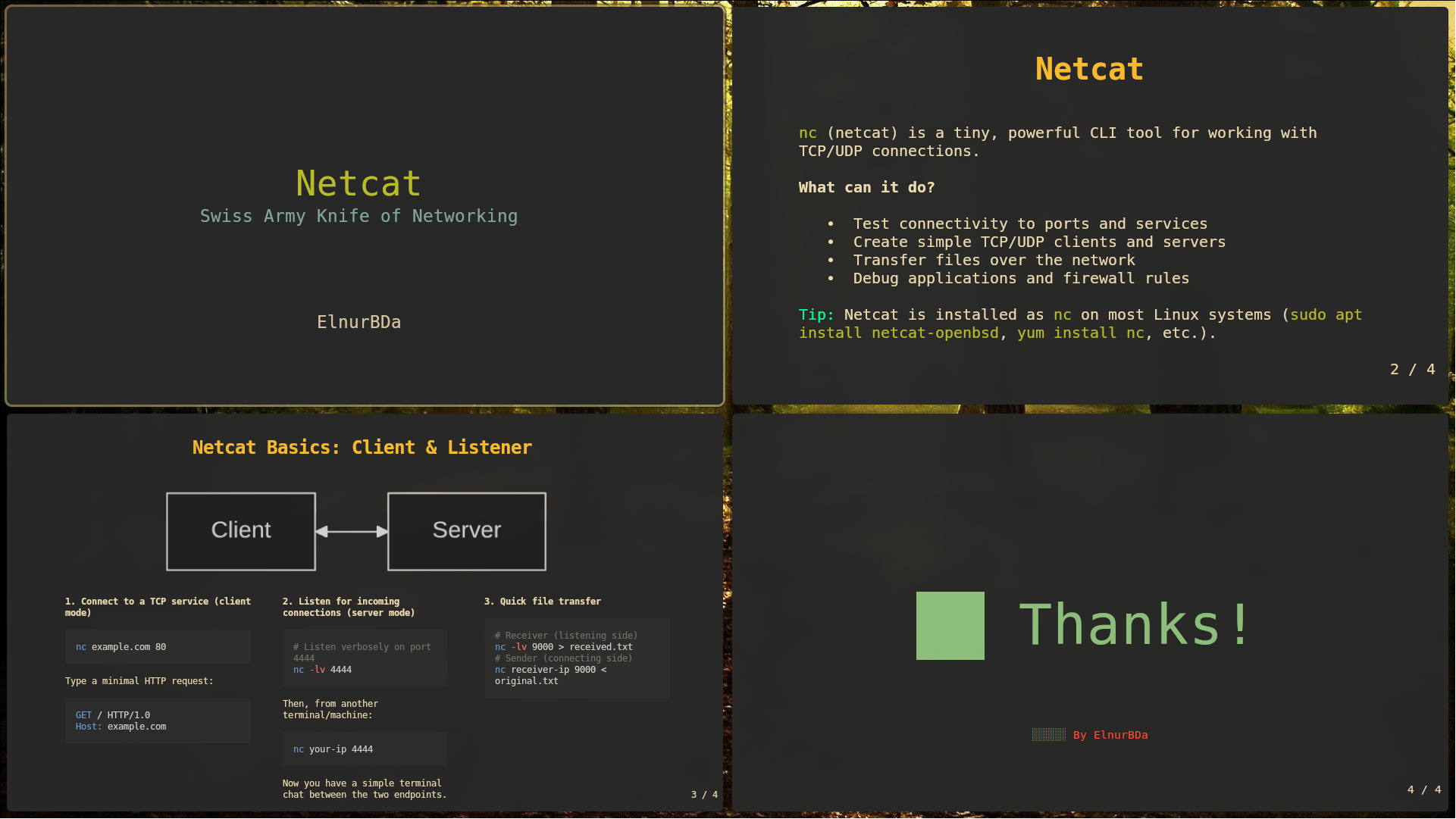
Here’s a simple Presenterm slide example to show how easy it is to format content:
---
title: "Netcat"
sub_title: "Swiss Army Knife of Networking"
author: "ElnurBDa"
theme:
  name: gruvbox-dark
---

# Netcat

`nc` (netcat) is a tiny, powerful CLI tool for working with TCP/UDP connections.

<!-- pause -->

**What can it do?**

- Test connectivity to ports and services
- Create simple TCP/UDP clients and servers
- Transfer files over the network
- Debug applications and firewall rules
<!-- pause -->

<span style="color: #00ff99">Tip:</span> Netcat is installed as `nc` on most Linux systems (`sudo apt install netcat-openbsd`, `yum install nc`, etc.).

<!-- end_slide -->

# Netcat Basics: Client & Listener

```mermaid +render
flowchart LR
    Client <--> Server
```

<!-- pause -->

<!-- column_layout: [1,1,1] -->
<!-- column: 0 -->

**1. Connect to a TCP service (client mode)**

```bash
nc example.com 80
```

Type a minimal HTTP request:

```bash
GET / HTTP/1.0
Host: example.com
```

<!-- pause -->

<!-- column: 1 -->

**2. Listen for incoming connections (server mode)**

```bash
# Listen verbosely on port 4444
nc -lv 4444
```

Then, from another terminal/machine:

```bash
nc your-ip 4444
```

Now you have a simple terminal chat between the two endpoints.

<!-- pause -->

<!-- column: 2 -->

**3. Quick file transfer**

```bash
# Receiver (listening side)
nc -lv 9000 > received.txt
# Sender (connecting side)
nc receiver-ip 9000 < original.txt
```

<!-- reset_layout -->
<!-- end_slide -->

<!-- font_size: 5 -->
<!-- alignment: center -->
<!-- jump_to_middle -->

# Thanks!

<!-- font_size: 1 -->

#### By ElnurBDa
Result:
Tips
1. LLM
Once you explain to an LLM how Presenterm works (feed it the documentation and some example slides), and provide your content, it can help you build very clean and structured presentations. Of course, a human touch is still needed—for creativity, images, good jokes, and memes that an LLM might not fully grasp.
2. Terminal
Use a terminal that can render images. For example:
alacrittyworks for lightweight presentations,- but if you want a “cinematic” experience, use
kitty.
3. Master Markdown
Markdown is a powerful format. I use it not only with Presenterm but also for note-taking (Hey, Obsidian!) and even for preparing blog posts (Hey, AstroJS!).
References and Gratitude
Big thanks to the creator and contributors of this tool!